Device to Cloud Command Line Interface DMO Access Profile Management
Overview
d2ccli accesses Telekom IoT Hub via the API of the DMO (Device Management Orchestrator).
So that you don’t have to specify the API access credentials with every command d2c offers functions to manage so-called DMO access profiles. By default DMO access profiles are stored as json files in the directory $HOME/.d2c/profiles.
{
    "profileName": "TST_d2c-dev-1",
    "clientId": "t-iot-hub--#########--########-####-####-#########",
    "clientSecret": "********-****-****-****-************",
    "getTokenUrl": "https://qa.spacegate.telekom.de/auth/realms/bond/protocol/openid-connect/token",
    "apiUrl": "https://qa.spacegate.telekom.de/bond/t-iot-hub/device-management-orchestrator/v3/d2c-dev-1"
}
| Field | Description |
|---|---|
| profileName | Your local name of the access profile. |
| clientId | Id of the registered IoT Hub client application. |
| clientSecret | Secret of the registered IoT Hub client application. |
| getTokenUrl | URL which provides the bearer access token for the clientId and clientSecret |
| apiUrl | API url including the tenant. |
The access profile which is used by the d2c commands is called active profile. It is configured in the file $HOME/.d2c/config.json.
{
    "activeProfileFile": "TST_d2c-dev-1.profile",
    "profilesDir": "/Users/ubuntu/.d2c/profiles"
}
You can overwrite the active profile in the call of d2c with the command line option --profile.
In this chapter the commands of the DMO Access Profile Management are described.
Available Commands
| Command | Short | Description |
|---|---|---|
| list-profiles | lp | Lists the profiles in the configuration. |
| print-profile | pp | Prints a profile of the configuration. |
| add-profile | ap | Creates a new profile by collecting required infos from user input. |
| modify-profile | mp | Modifies profile by collecting user input from console. |
| activate-profile | acp | Activates a profile to be used as default. |
| print-active-profile | pap | Prints the current active profile. |
| profile-manager | pm | Starts the profile manager gui. |
list-profiles
- Description
- Options
- Global Options
- Samples
By default d2c manages the DMO access profiles as json files in the directory $HOME/.d2c/profiles. With the command list-profiles you can filter those files and print its content to stdout.
d2c list-profiles [--select <select fields> | -s <select fields>]
                  [--filter <filter pattern> | -f <filter pattern>]
                  [--separator-char <char>]
                  [--help | -h]
                  [--debug]
                  [--info]
                  [--outfile <filepath>]
                  [--config-directory <directory>]
                  [--config-file <file>]
--select <select fields>, -s <select fields>
A comma seperated list of element names which shall be selected from the profile’s json file and written to stdout as CSV format (see Overview
)
--filter <filter pattern>, -f <filter pattern>
Glob pattern to filter the profile files.
--separator-char <char>
If the --selectoption is used the selected elements are written to the stdout as CSV. With --separator-char you can control which character shall be used to seperate the different fields from each other in the output. By default ; is used as separator character.
--help, -h
Displays the help for this command.
--info
Turn on info logging.
--debug
Turn on debug logging.
--outfile <filepath>
File into which the info or debug outputs shall be written additionaly.
--config-directory <directory>
Path to the directory within which the file config.json can be found. By default this directory is $HOME/.d2c.
--config-file <file>
Path to the configuration file. By default this path is $HOME/.d2c/config.json.
List selected elements of all DMO access profile as CSV
d2c list-profiles --select "file,profileName,apiUrl"
TST_d2c-dev-3.profile;TST_d2c-dev-3;https://qa.spacegate.telekom.de/bond/t-iot-hub/device-management-orchestrator/v3/d2c-dev-3
TST_d2c-dev-2.profile;TST_d2c-dev-2;https://qa.spacegate.telekom.de/bond/t-iot-hub/device-management-orchestrator/v3/d2c-dev-2
TST_d2c-dev-1.profile;TST_d2c-dev-1;https://qa.spacegate.telekom.de/bond/t-iot-hub/device-management-orchestrator/v3/d2c-dev-1
DEV_d2c-dev-2.profile;DEV_d2c-dev-2;https://playground.spacegate.telekom.de/t-iot-hub/device-management-orchestrator/v3/d2c-dev-2
DEV_d2c-dev-3.profile;DEV_d2c-dev-3;https://playground.spacegate.telekom.de/t-iot-hub/device-management-orchestrator/v3/d2c-dev-3
DEV_d2c-dev-1.profile;DEV_d2c-dev-1;https://playground.spacegate.telekom.de/t-iot-hub/device-management-orchestrator/v3/d2c-dev-1
print-profile
- Description
- Options
- Global Options
- Samples
d2c print-profile prints the content of a DMO access profile as JSON or CSV format.
d2c print-profile *[--file <file> | -f <file>]
                  [--select <select fields> | -s <select fields>]
                  [--separator-char <char>]
                  [--help | -h]
                  [--debug]
                  [--info]
                  [--outfile <filepath>]
                  [--config-directory <directory>]
                  [--config-file <file>]
--file <file>, -f <file>
Required name of the DMO access profile file without directory but with the .profile extension. By default the file is searched in the standard profiles directory ```$HOME/.d2c/profiles``.
--select <select fields>, -s <select fields>
A comma seperated list of element names which shall be selected from the profile’s json file and written to stdout as CSV format (see Overview
)
--separator-char <char>
If the --selectoption is used the selected elements are written to the stdout as CSV. With --separator-char you can control which character shall be used to seperate the different fields from each other in the output. By default ; is used as separator character.
--help, -h
Displays the help for this command.
--info
Turn on info logging.
--debug
Turn on debug logging.
--outfile <filepath>
File into which the info or debug outputs shall be written additionaly.
--config-directory <directory>
Path to the directory within which the file config.json can be found. By default this directory is $HOME/.d2c.
--config-file <file>
Path to the configuration file. By default this path is $HOME/.d2c/config.json.
d2c print-profile --file TST_d2c-dev-1.profile --select profileName,clientId
TST_d2c-dev-1;t-iot-hub--aff1ecdl5f--a8509856-0a1a-4547-bf0e-018e1452e7d8
d2c print-profile --file TST_d2c-dev-1.profile
{
    "profileName": "TST_d2c-dev-1",
    "apiUrl": "https://qa.spacegate.telekom.de/bond/t-iot-hub/device-management-orchestrator/v3/d2c-dev-1",
    "getTokenUrl": "https://qa.spacegate.telekom.de/auth/realms/bond/protocol/openid-connect/token",
    "clientId": "t-iot-hub--#########--########-####-####-#########",
    "clientSecret": "********-****-****-****-************",
    "file": "/Users/A336442/.d2c/profiles/TST_d2c-dev-1.profile"
}
add-profile
- Description
- Options
- Global Options
- Samples
With the command d2c add-profile you can create a new DMO access profile file.
You can create the profile either from the scratch or by copying an existing profile. To copy the new profile from an existing one use the command line option --copy-from-profile.
d2c add-profile [--copy-from-profile <file>]
                [--help | -h]
                [--debug]
                [--info]
                [--outfile <filepath>]
                [--config-directory <directory>]
                [--config-file <file>]
--copy-from-profile <file>Name of the DMO access profile file without directory but with the
.profile extension which shall be used as a template to create the new profile. By default the file is searched in the standard profiles directory ```$HOME/.d2c/profiles``.--help, -h
Displays the help for this command.
--info
Turn on info logging.
--debug
Turn on debug logging.
--outfile <filepath>
File into which the info or debug outputs shall be written additionaly.
--config-directory <directory>
Path to the directory within which the file config.json can be found. By default this directory is $HOME/.d2c.
--config-file <file>
Path to the configuration file. By default this path is $HOME/.d2c/config.json.
Create a new DMO access profle by using another profile as a template
d2c add-profile --copy-from-profile TST_d2c-dev-1.profile
add profile - Profile Name [TST_d2c-dev-3]: TST_d2c-dev-4
add profile - API URL [https://qa.spacegate.telekom.de/bond/t-iot-hub/device-management-orchestrator/v3/d2c-dev-3]: https://qa.spacegate.telekom.de/bond/t-iot-hub/device-management-orchestrator/v3/d2c-dev-4
add profile - Get Token URL [https://qa.spacegate.telekom.de/auth/realms/bond/protocol/openid-connect/token]:
add profile - Client Id [t-iot-hub--#########--########-####-####-#########]: t-iot-hub--#########--########-####-####-#########
add profile - Client Secret [********-****-****-****-************]: ********-****-****-****-************
To understand the elements for which an input is required please goto to overview .
modify-profile
- Description
- Options
- Global Options
- Samples
With the command d2c modify-profile you can change an existing DMO access profile file.
d2c modify-profile *[--file <file> | -f <file>]
                   [--help | -h]
                   [--debug]
                   [--info]
                   [--outfile <filepath>]
                   [--config-directory <directory>]
                   [--config-file <file>]
--file <file>, -f <file>Required name of the DMO access profile file without directory but with the
.profile extension which shall be modified. By default the file is searched in the standard profiles directory ```$HOME/.d2c/profiles``.--help, -h
Displays the help for this command.
--info
Turn on info logging.
--debug
Turn on debug logging.
--outfile <filepath>
File into which the info or debug outputs shall be written additionaly.
--config-directory <directory>
Path to the directory within which the file config.json can be found. By default this directory is $HOME/.d2c.
--config-file <file>
Path to the configuration file. By default this path is $HOME/.d2c/config.json.
Modify an existing DMO access profile
d2c modify-profile --file TST_d2c-dev-1.profile
modify profile - Profile Name [TST_d2c-dev-1]:
modify profile - API URL [https://qa.spacegate.telekom.de/bond/t-iot-hub/device-management-orchestrator/v3/d2c-dev-1]:
modify profile - Get Token URL [https://qa.spacegate.telekom.de/auth/realms/bond/protocol/openid-connect/token]:
modify profile - Client Id [t-iot-hub--#########--########-####-####-#########]:
modify profile - Client Secret [********-****-****-****-************]:
To understand the elements for which an input is required please goto to overview .
activate-profile
- Description
- Options
- Global Options
- Samples
With the command d2c activate-profile you can set an existing DMO access profile as the active one. By default the active profile is used if it is not explicity defined by the command line option --profile.
d2c activate-profile *[--file <file> | -f <file>]
                     [--help | -h]
                     [--debug]
                     [--info]
                     [--outfile <filepath>]
                     [--config-directory <directory>]
                     [--config-file <file>]
--file <file>, -f <file>Required name of the DMO access profile file without directory but with the
.profile extension which shall be set as active profile. By default the file is searched in the standard profiles directory ```$HOME/.d2c/profiles``.--help, -h
Displays the help for this command.
--info
Turn on info logging.
--debug
Turn on debug logging.
--outfile <filepath>
File into which the info or debug outputs shall be written additionaly.
--config-directory <directory>
Path to the directory within which the file config.json can be found. By default this directory is $HOME/.d2c.
--config-file <file>
Path to the configuration file. By default this path is $HOME/.d2c/config.json.
Activating an existing DMO access profile
d2c activate-profile --file TST_d2c-dev-1.profile
print-active-profile
- Description
- Options
- Global Options
- Samples
With the command d2c print-active-profile you can let print the current active DMO access profile to stdout.
d2c print-active-profile [--select <select fields> | -s <select fields>]
                         [--separator-char <char>]
                         [--help | -h]
                         [--debug]
                         [--info]
                         [--outfile <filepath>]
                         [--config-directory <directory>]
                         [--config-file <file>]
--select <select fields>, -s <select fields>
A comma seperated list of element names which shall be selected from the profile’s json file and written to stdout as CSV format (see Overview
)
--separator-char <char>
If the --selectoption is used the selected elements are written to the stdout as CSV. With --separator-char you can control which character shall be used to seperate the different fields from each other in the output. By default ; is used as separator character.
--help, -h
Displays the help for this command.
--info
Turn on info logging.
--debug
Turn on debug logging.
--outfile <filepath>
File into which the info or debug outputs shall be written additionaly.
--config-directory <directory>
Path to the directory within which the file config.json can be found. By default this directory is $HOME/.d2c.
--config-file <file>
Path to the configuration file. By default this path is $HOME/.d2c/config.json.
Print current active DMO access profile
d2c print-active-profile
{
    "profileName": "DEV_d2c-dev-3",
    "apiUrl": "https://playground.spacegate.telekom.de/t-iot-hub/device-management-orchestrator/v3/d2c-dev-3",
    "getTokenUrl": "https://playground.spacegate.telekom.de/auth/realms/default/protocol/openid-connect/token",
    "clientId": "t-iot-hub--#######-#######-####-#####",
    "clientSecret": "*********-****-****-****-********",
    "file": "/Users/A336442/.d2c/profiles/DEV_d2c-dev-3.profile"
}
To understand the elements of the DMO access profile please goto to overview .
profile-manager
- Description
- Options
- Global Options
- Samples
With the command d2c profile-manager you can open the GUI application to manage the DMO access profiles.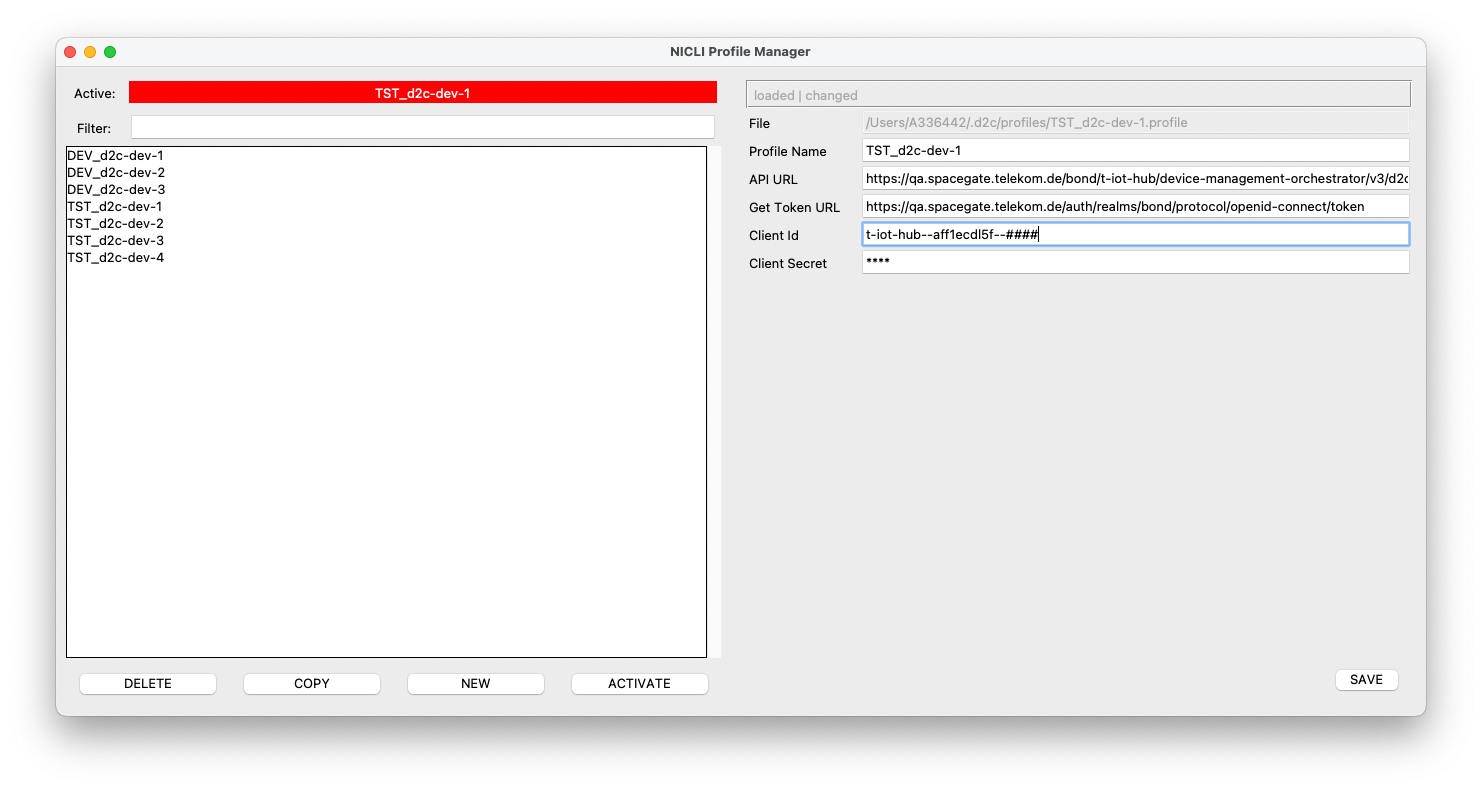
d2c profile-manager GUI application you need to install the python package tkinter before. Without the tkinter package you will not be able to start the GUI application.d2c profile-manager [--help | -h]
[--debug]
[--info]
[--outfile <filepath>]
[--config-directory <directory>]
[--config-file <file>]
--help, -h
Displays the help for this command.
--info
Turn on info logging.
--debug
Turn on debug logging.
--outfile <filepath>
File into which the info or debug outputs shall be written additionaly.
--config-directory <directory>
Path to the directory within which the file config.json can be found. By default this directory is $HOME/.d2c.
--config-file <file>
Path to the configuration file. By default this path is $HOME/.d2c/config.json.
Open the profile manager GUI application
d2c profile-manager